
Introduction to Sharing
Share your 3D projects with anyone, whether they have a 3DtoMe app or not.
Introduction to sharing
You can share a 3D project in three ways:
- A direct link that opens the project in the web viewer at viewer.3dto.me.
- A QR code that people scan with a phone, for example on a printed flyer.
- An embed code that shows the project inside your website.
People who open your project see it in their browser, with no 3DtoMe app or account. You can share from the 3DtoMe web viewer or from the 3DtoMe apps.
Share from the web viewer
- Sign in at viewer.3dto.me and open a project you own.
- Click Share in the top right corner.
- The window asks "How do you want to share the project?". Choose Embed, QRCode or Direct link.
- Copy the code or the link, or download the QR code. Below it, set the Options and Security for the share.
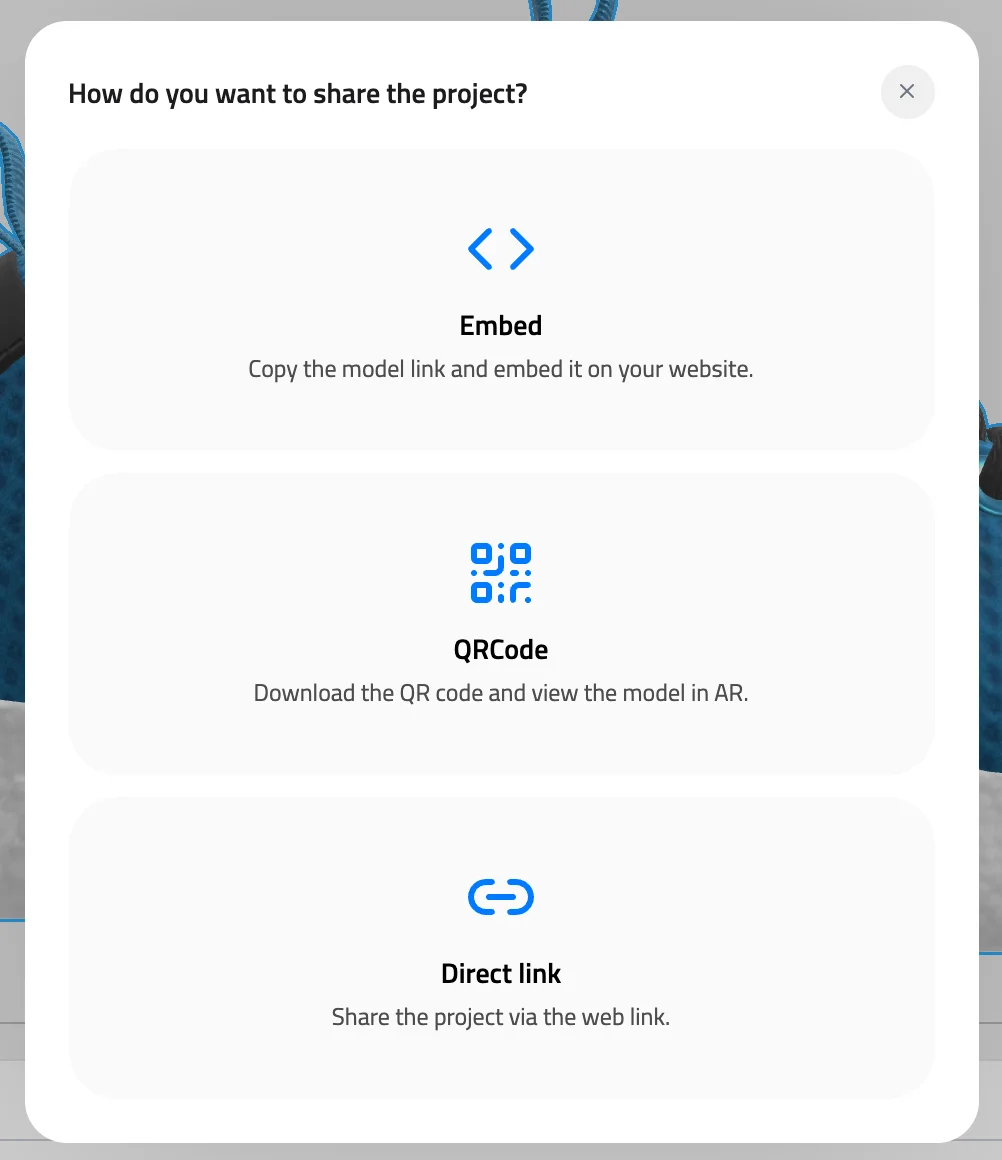
Model: MaterialsVariantsShoe by Shopify, CC BY 4.0
Only the owner of a project can share it. Other signed-in users who click Share see a message that only the project's owner can create a share link. Projects in the Explore gallery have no Share button.
Share from the 3DtoMe apps
- Open the 3DtoMe app and select the model you want to share.
- Click the Share icon. On iOS, tap options and then choose Share model, Generate QR code or Embed model.
The pages for each sharing method have the full steps for the web viewer and the apps.
Plan requirements
| Feature | Minimum plan |
|---|---|
| Direct link, QR code and embed code | Pro |
| Link options such as Show Comments or Show dimension | Pro |
| Allowed domains for embeds | Corporate |
| Password protected | Corporate |
On a lower plan, the Share button has a padlock. Clicking it opens a form to contact the 3DtoMe sales team. See Plans and locked features.
Links depend on the owner's plan
Visitors don't need a 3DtoMe account or a plan to open a shared project. The link works as long as the owner's plan covers it:
- If the owner's plan ends or drops below Pro, the link, the QR code and the embed show a "not found" page to everyone except the owner.
- A password-protected project needs the owner to stay on the Corporate plan. If the plan drops below Corporate, the link, the QR code and the embed show a "not found" page to visitors. 3DtoMe never opens the project without the password.
- The links start working again as soon as the owner renews the plan. The share code stays the same.
Turning off Anyone with the link can view and removing a password work on every plan, so you can always close a link.
Next Steps
- Learn how to share your model with a link.
- Discover how to share your model with a QR code.
- Learn how to embed your model in your website.
Still have questions?
If you still have questions, please reach out to our support team for assistance.
Contact Support