
Use seeMote with your 3D models
Learn how to connect the seeMote Cube to your Apple Vision Pro and grab your 3D models with your hands.
Introduction
seeMote Cube is a handheld spatial controller for Apple Vision Pro with 6DoF tracking, 6 physical buttons and haptic feedback.
With 3DtoMe, the cube becomes an anchor for your 3D model: move, rotate and inspect your model exactly as you would do with a real object, while the physical buttons let you launch explosions, switch configurations and play animations without looking away from the model.
The seeMote support is available on the 3DtoMe app for Apple Vision Pro.
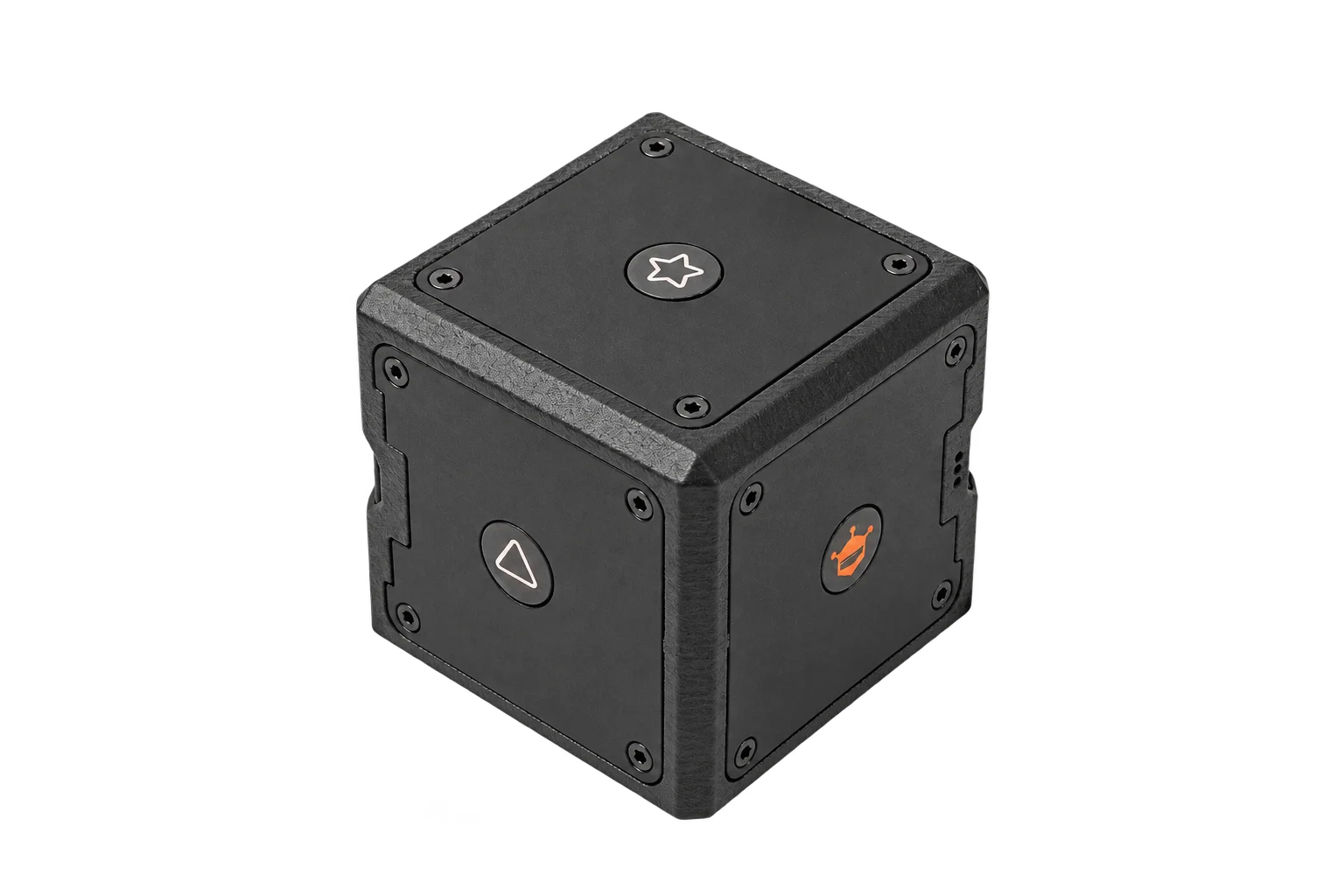
Connect your seeMote
The seeMote Cube is a spatial accessory, so you don't have to connect it from inside 3DtoMe: just follow the standard Apple Vision Pro guidelines to add a new spatial accessory via Bluetooth.
- Turn on your seeMote Cube and put it in pairing mode.
- On your Apple Vision Pro, open Settings and go to Bluetooth.
- Wait for the cube to appear in the list of the accessories nearby and select it to pair it.
- Follow the instructions on screen until the accessory is listed as Connected.
That's all: after that, open a project in the 3DtoMe app and et voilà, the accessory is ready to be used with your 3D model.
Anchor your 3D model
Once the cube is connected and a project is open, the seeMote Cube becomes an anchor for your 3D model: the model follows the position and the rotation of the cube in the space.
You can then hold the cube in your hand and move, rotate and inspect your 3D model exactly as you would do with the real object, looking at it from any angle without using any gesture.
Next Steps
- Discover how to explode your 3D model.
- Learn how to use the visionOS interface.
- Discover how to view your 3D model.
- Learn how to collaborate with your team.
Still have questions?
If you still have questions, please reach out to our support team for assistance.
Contact Support