
Anatomical Axis
Show the body's directions and planes on an anatomical model.
Overview
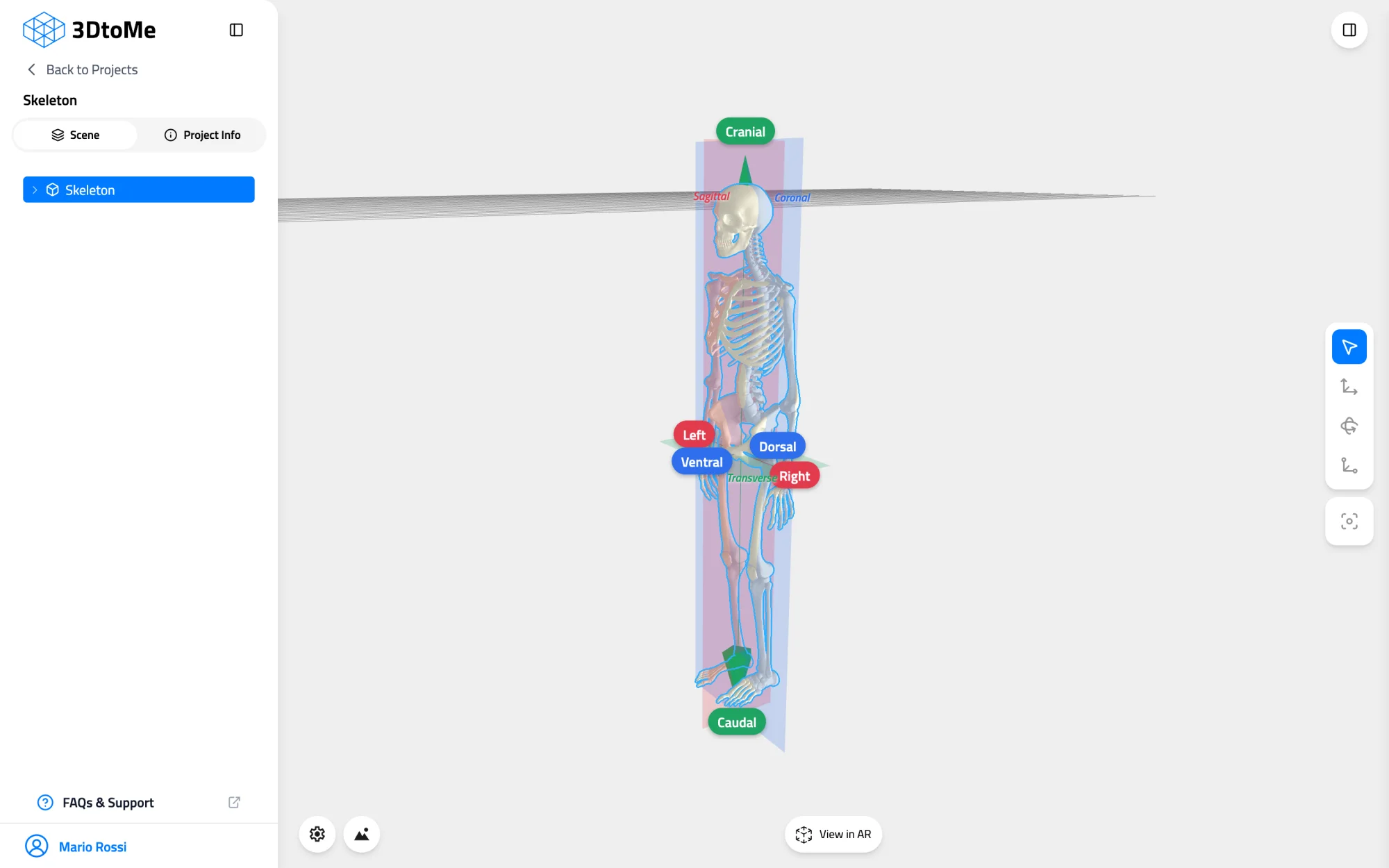
The anatomical axis is a guide that the web viewer draws over a model of a body, such as an animal skeleton or a scanned organ. It shows which way is toward the head, toward the belly and toward each side.
Use it to point out parts of a model with the standard anatomical terms, or to check that a scan sits the right way up.
Who can use it
The anatomical axis isn't part of a plan. The 3DtoMe team turns it on for each account. To get it, write to us from the contact page.
You need to be signed in with that account. The guide works on 3D models but not on Gaussian splats.
Show the guide
- Open the project and select the model.
- Open the right panel and click the Model tab.
- Find the Anatomical axis section and turn on Show anatomical axis.
Turn the switch off to hide the guide. Each model in a project has its own switch.
Read the guide
The guide has arrows that point in the six body directions. Each arrow ends in a label:
| Labels | Meaning | Color |
|---|---|---|
| Cranial and Caudal | Toward the head and toward the tail | Green |
| Ventral and Dorsal | Toward the belly and toward the back | Blue |
| Right and Left | The subject's own right and left side | Red |
Three see-through planes cut through the model. Each plane carries its name in one corner:
- Sagittal, in red, splits the body into right and left.
- Coronal, in blue, splits it into front and back.
- Transverse, in green, splits it into top and bottom.
Good to know
- The guide stays on until you open another project or reload the page. The viewer doesn't save the switch.
- The 3DtoMe team lines the guide up with each model. If the arrows point the wrong way, contact us and name the model.
Next Steps
- Add labels to parts of the body with annotations.
- Learn how to move the camera around the model.
Still have questions?
If you still have questions, please reach out to our support team for assistance.
Contact Support