
Projects Home
Browse public projects, open your own and star the ones you use most.
Overview
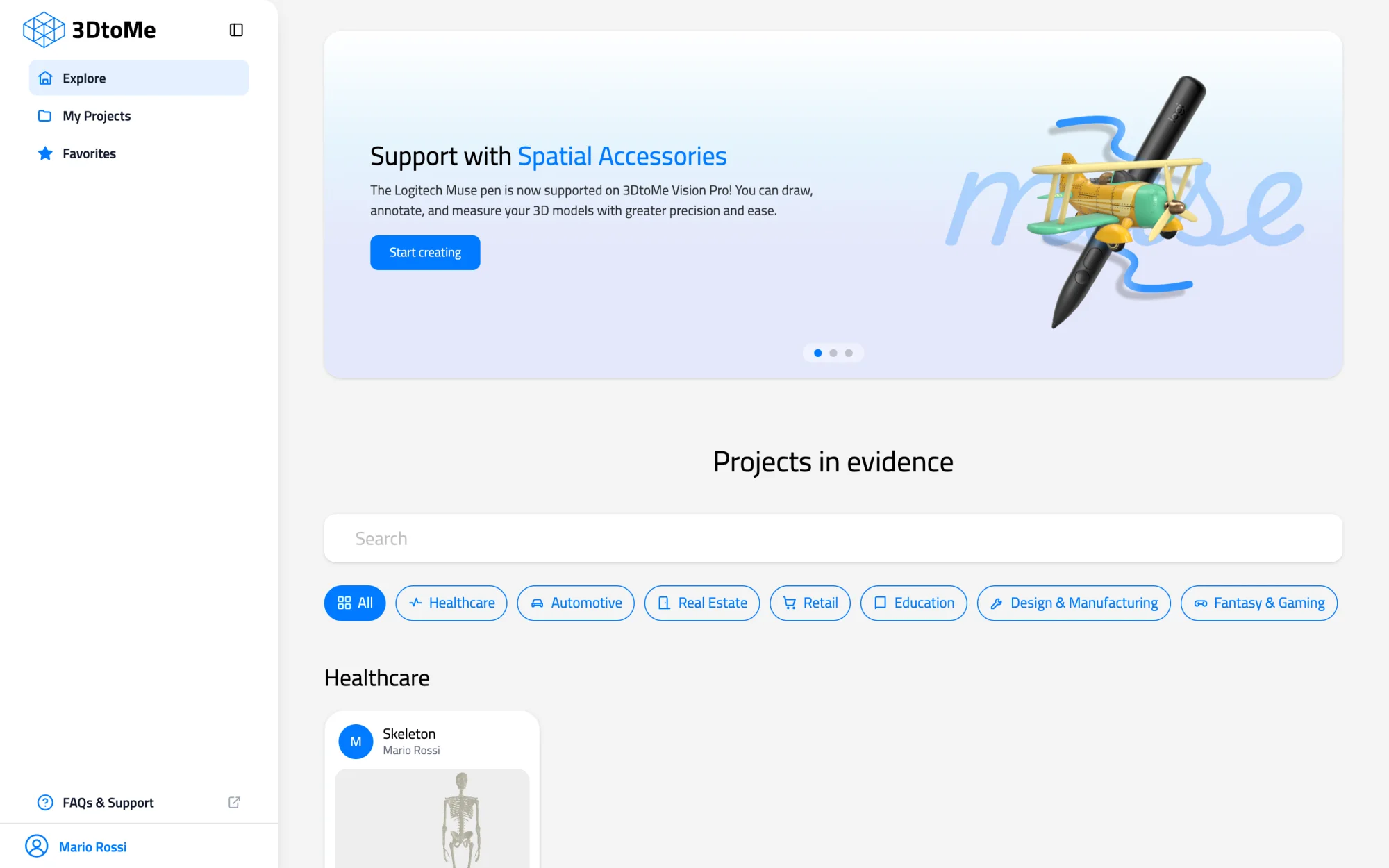
When you sign in at viewer.3dto.me, the viewer opens on your projects home. The left panel lists three sections: Explore, My Projects and Favorites. Click one to show it in the main area. The button next to the 3DtoMe logo, top left, opens and closes the left panel.
On a phone, the left panel covers the whole screen. It closes once you pick a section.
When you open a project, the left panel switches to that project. Click Back to Projects at the top of the panel to return to the home. For a tour of the screen inside a project, see Web interface.
Explore
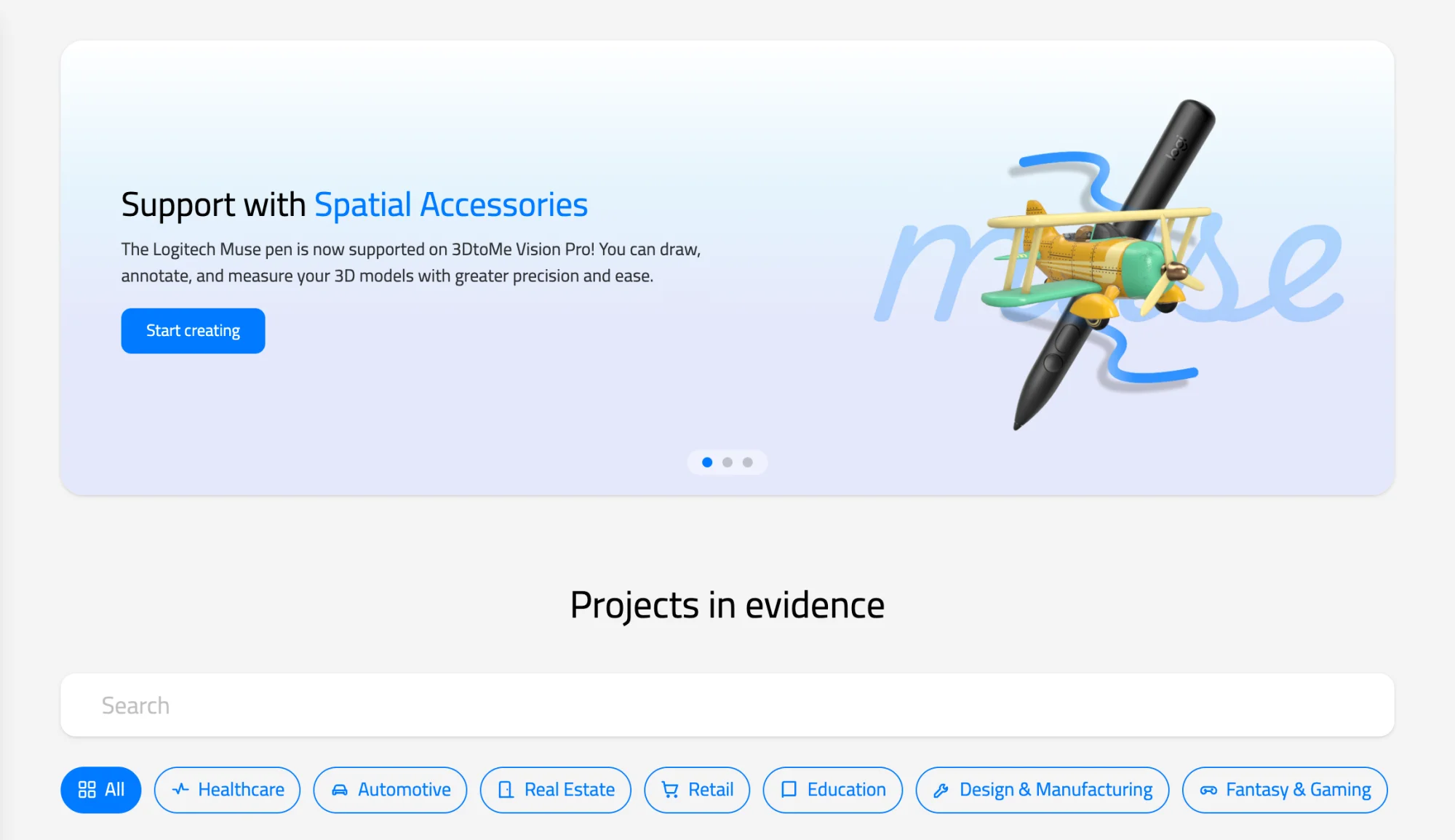
Explore shows public projects from the 3DtoMe team, grouped by category. Click a card to open a project. Start creating opens the New Project window. See Create a project and upload models.
My projects
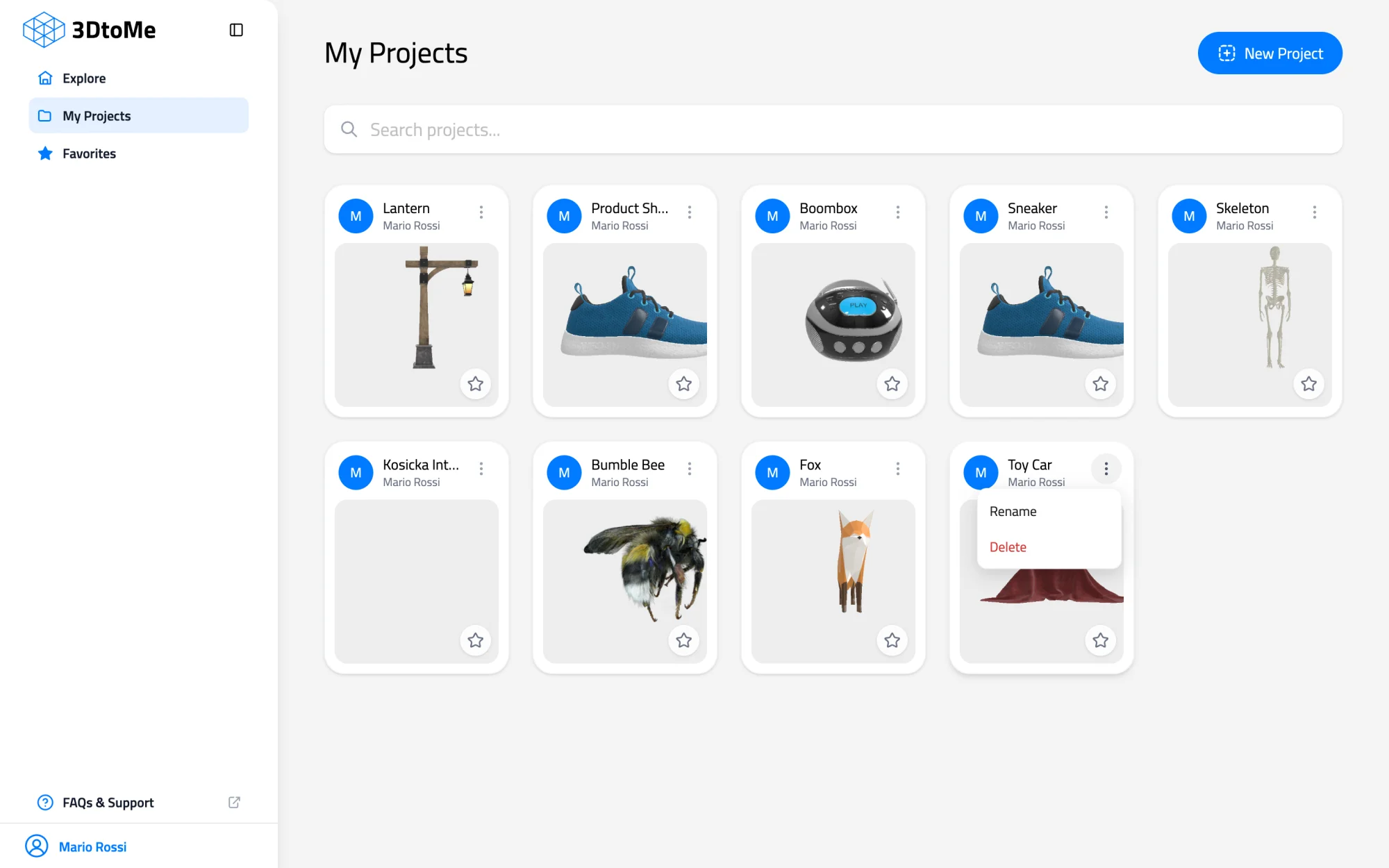
My Projects shows every project in your account as a grid of cards. Each card has the project name, the author and the thumbnail. More projects load as you scroll down.
- Type in the Search projects... box to filter the grid as you type.
- Click New Project to create a project from a 3D file. See Create a project and upload models.
- Click a card to open the project.
To rename or delete a project, click the three-dot button in the top right corner of its card, or right-click the card. The menu has two entries:
- Rename opens the Rename Project dialog. Type the new name and click Rename.
- Delete opens the Delete Project dialog. Click Delete to confirm. You can't undo this.
If you have no projects yet, the grid says "No projects yet. Create a new project to start."
Model: MaterialsVariantsShoe by Shopify, CC BY 4.0
Model: Fox by PixelMannen and tomkranis, CC BY 4.0
Model: Bumble Bee (Bombus terrestris) by Huib Schippers, CC BY 4.0
Favorites
Every card in My Projects has a star in the bottom right corner of its thumbnail. Click it to add the project to Favorites. The star turns yellow.
The Favorites section lists only those projects, with the same cards, menu and star. To remove a favorite, click the yellow star and then Remove in the Remove from favorites dialog.
Cards in Explore have no star, so you can't add public projects to your favorites.
Project thumbnail
The thumbnail is the image on the project's card. If you don't set one, the viewer uses the first view of the model.
To use your own image on a project you own that is not public:
- Open the project and click the Project Info tab in the left panel.
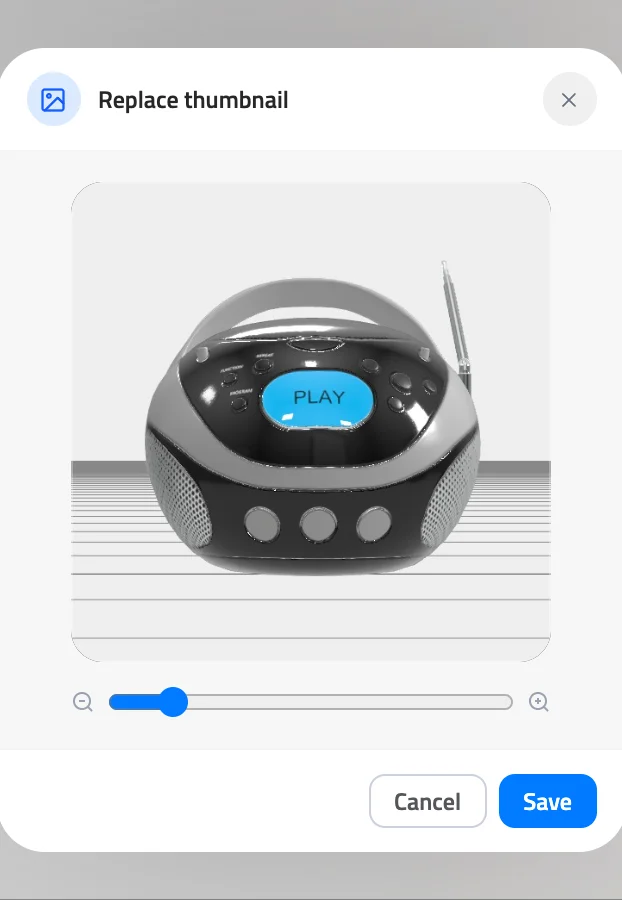
- Click the small image next to Thumbnail. The Replace thumbnail window opens with the current image.
- Click the image or Change image and pick a PNG, JPG or WebP file of 25 MB or less.
- Drag the image to frame it in the square. Use the zoom slider or the mouse wheel to zoom in, up to 4 times.
- Click Save.
To pick another image before you save, click Cancel.
If the file is the wrong type, larger than 25 MB, or not a real image, the window shows an error under the image and keeps the current thumbnail.
Next Steps
- Start a project from a 3D file in Create a project and upload models.
- Learn how to select, hide and move models in a project.
- Set the opening view in Camera controls and default view.
Still have questions?
If you still have questions, please reach out to our support team for assistance.
Contact Support