
View Settings
Show dimensions, play animations and control the selection outline.
Overview
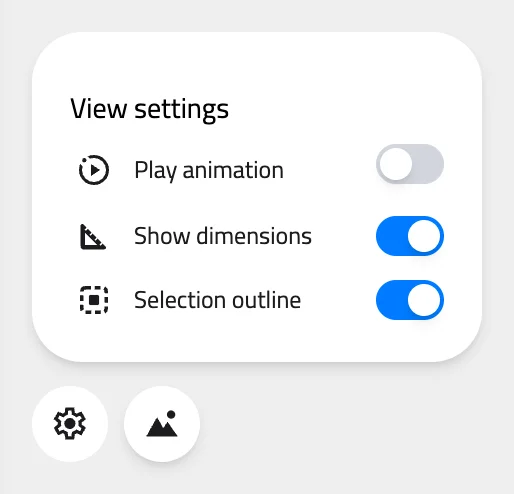
Click the Settings button at the bottom left of the viewer to open the View settings popup. Click anywhere outside it to close it.
| Switch | What it does | Who sees it |
|---|---|---|
| Play animation | Plays the animations stored in the models | Everyone |
| Show dimensions | Labels the width, height and depth of each model | Everyone |
| Selection outline | Draws an outline around the selected object | Signed-in users |
These switches change only your own view. The viewer doesn't save them with the project. The background and grid switches are in the Environment popup next to Settings. See Environment and background.
Show dimensions
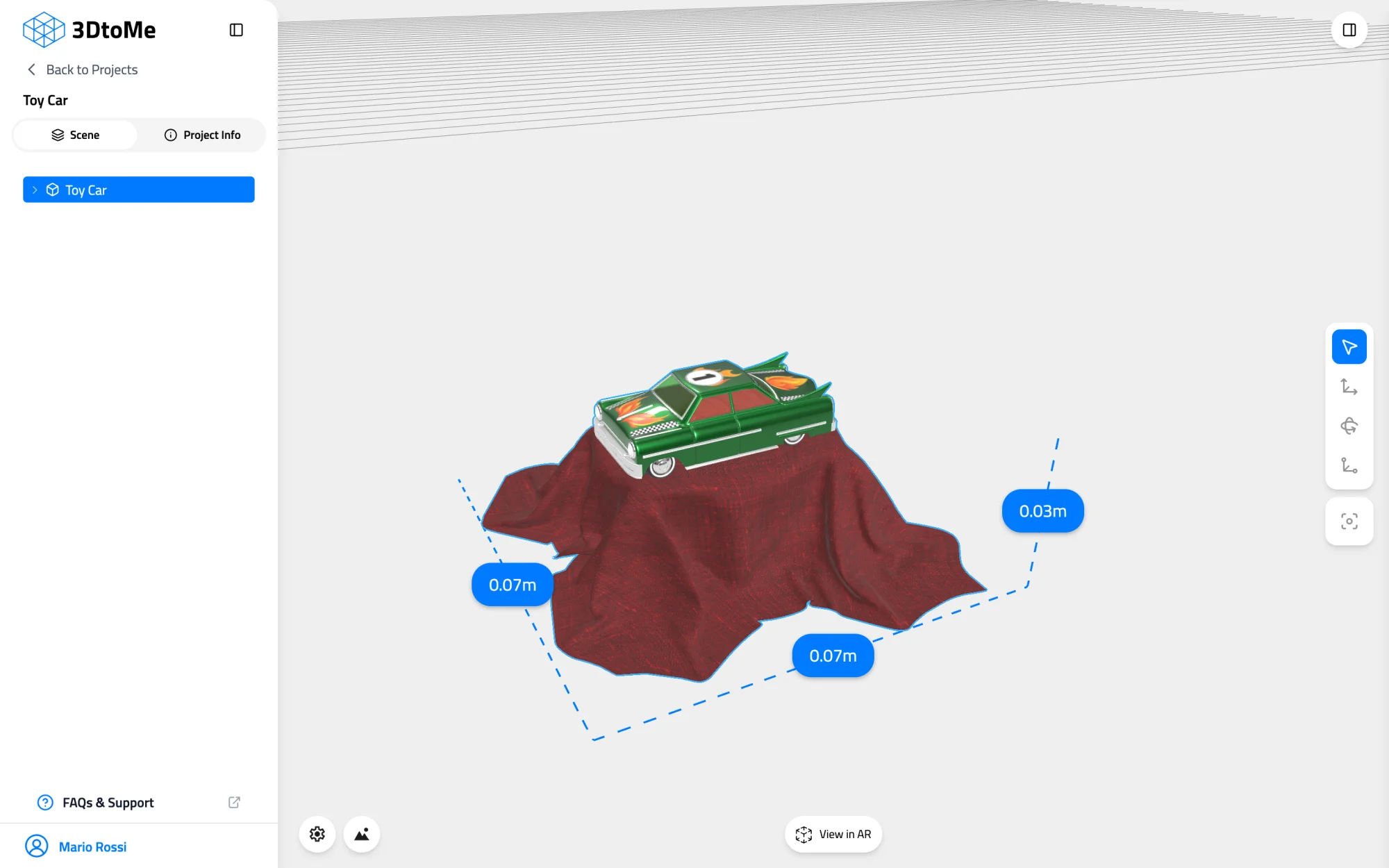
Turn on Show dimensions to see how big each model is. The viewer labels the width, height and depth of each model in meters.
In a project with several models, each model gets its own labels. Gaussian splats get labels too.
The labels measure the box that contains the model, not a distance you pick. The web viewer has no tool for measuring between two points.
Play animation
Turn on Play animation to play the animations stored in your models. Every animation in every model plays at once. They loop until you turn the switch off. You can't pick a single animation to play.
The switch is grayed out when no model in the project has an animation. Gaussian splats have no animations.
Selection outline
When you are signed in and select an object, the viewer draws an outline around it. Turn off Selection outline to hide the outline. The object stays selected.
Visitors who are not signed in don't get this switch, and they never see the outline.
Exact sizes in the Model tab
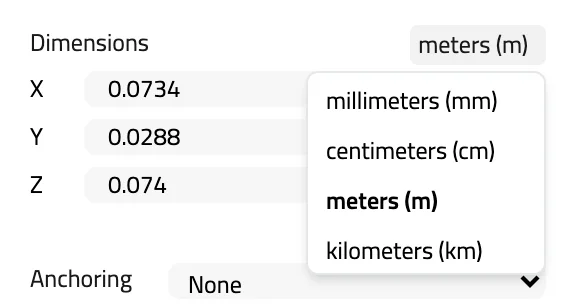
Signed-in users can read a model's size as numbers. Select a model, then open the Model tab in the right panel. The Dimensions section lists the size along X, Y and Z.
Use the unit menu next to the title to switch between millimeters (mm), centimeters (cm), meters (m) and kilometers (km). The default is meters.
You can't type a new size here. To resize the model, use the Scale fields. See Select, hide and move models.
Open a link with settings on
To open a shared link with dimensions or animation already on, turn on Show dimension or Play Animation under Options in the Share window. Link options need a Pro plan. Read more in Share with a link.
Next Steps
- Change the background and grid in Environment and background.
- Learn how to move, rotate and scale models.
- Learn how to move the camera in Camera navigation.
Still have questions?
If you still have questions, please reach out to our support team for assistance.
Contact Support