
Collaborative Call
Look at the same project with other people in real time, from the browser or from the 3DtoMe apps.
Overview
A collaborative call connects everyone who has the same project open. One person, the speaker, moves the models. Everyone else sees each change as it happens. Annotations and spatial drawings appear for all participants too.
The web viewer's call carries no audio or video. Use your usual phone or meeting tool to talk while you work. For FaceTime sessions started from Apple Vision Pro or Android XR, see Collaboration.
Requirements
The collaboration button appears at the top right when:
- you are signed in,
- a project is open,
- and the project is not a public project from Explore.
Joining a call needs a Corporate or Enterprise plan. The plan that counts is your own, not the project owner's. Every participant needs one. On a lower plan the button shows a padlock. Clicking it opens the upgrade window. See Features by plan.
Start or join a call
Each project has a single call. To start it or join it:
- Open the project.
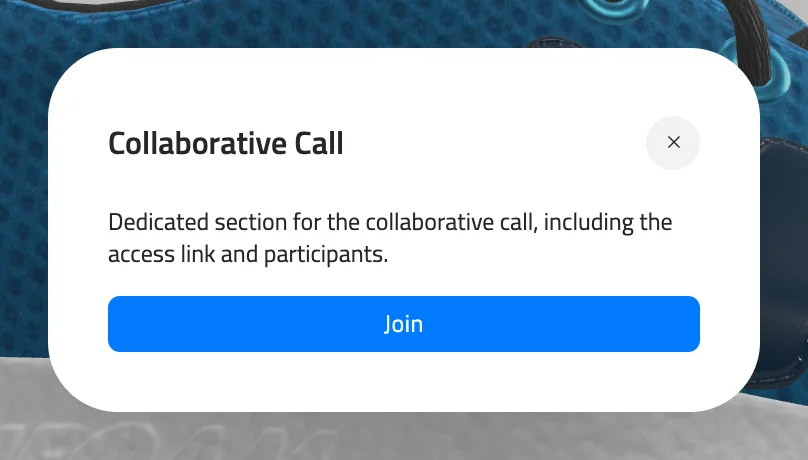
- Click the collaboration button at the top right, to the left of Share. The Collaborative Call window opens.
- Click Join.
Model: MaterialsVariantsShoe by Shopify, CC BY 4.0
If nobody is in the call yet, you start it and become its host. If the call is already running, you join it.
There is no invite button. To bring someone in, send them the project's share link from the Share button. They sign in, open the link, and click Join in the same way. Read more in Sharing.
The collaboration button turns green while you are in a call. Closing the window does not take you out of the call. Click the collaboration button again to reopen the window.
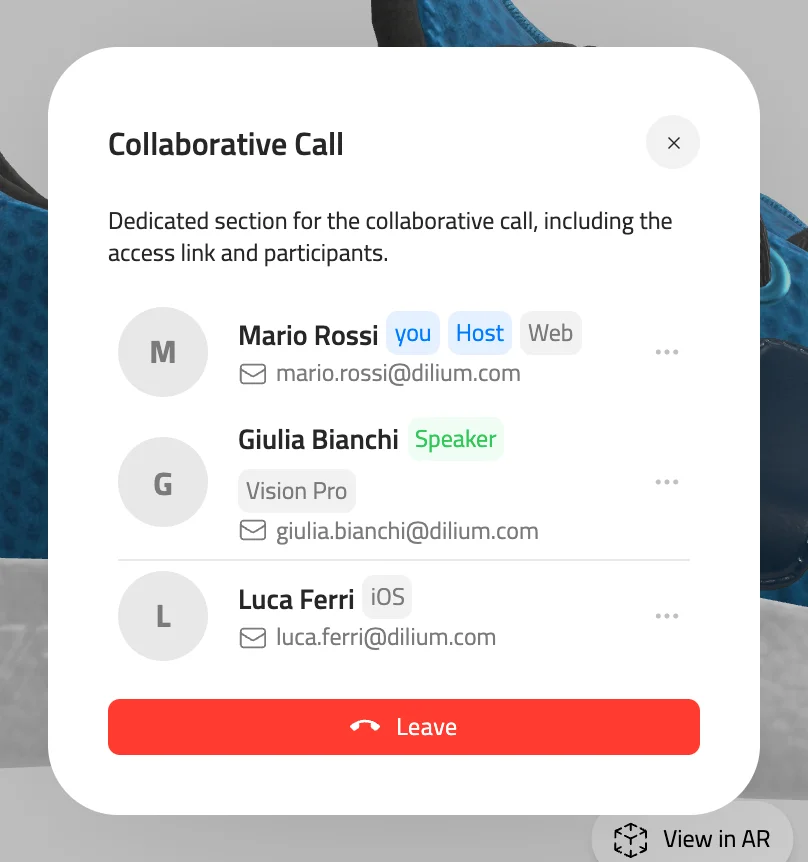
Once you are in, the window lists everyone in the call. Badges mark you, the host, the speaker and the device each person joined from. To act on a participant, click the three-dot button on their row.
Model: MaterialsVariantsShoe by Shopify, CC BY 4.0
Leave a call
Open the Collaborative Call window and click the red Leave button. If you were following someone, that stops too.
The call ends when the last participant leaves. The next person to click Join on the project starts a new call and becomes its host.
Host and speaker
The host starts as the speaker. Only the speaker can move, rotate and scale models. For everyone else, the Transform toolbar on the right edge and the fields in the Model tab are grayed out.
To hand over control, open the menu on a participant's row and choose Make speaker. The host and the current speaker both have this option. To take the role back, the host chooses Make speaker on their own row.
The host keeps control of annotations and drawings, even after passing the speaker role. Only the host can add, rename, delete, show or hide annotations. Only the host can rename or delete drawings.
Follow a participant
Following someone puts your camera on their point of view. Open the menu on their row and choose Follow. Their row turns blue, and your camera moves whenever theirs does.
While you follow someone, you can't move the camera yourself, and the Reset view button is hidden. Choose Unfollow from the same menu to get your camera back.
Good to know
- You can't follow anyone while another participant is following you. The Follow option comes back when they stop.
- Drawings that are already in the call when you join stay hidden. Show them in the Spatial Drawings tab.
Next Steps
- Learn how the speaker can move, rotate and scale models.
- Send the project link with Sharing.
- Check which plan includes collaboration in Features by plan.
Still have questions?
If you still have questions, please reach out to our support team for assistance.
Contact Support