
Model Gallery and Documents
Attach images, videos, PDFs and links to a model, and let visitors open them next to it.
Overview
Each model in a project can have its own gallery. A gallery holds a title, a description, website links, and a set of images, videos and PDFs. Use it for a product sheet, a manual, a demo video or photos of the real object.
You fill in the gallery from the Model tab of the right panel. Visitors open it from the Model Gallery button at the bottom of the viewer. In the 3DtoMe apps for iPhone and Apple Vision Pro, the same content appears in a panel beside the model, with tabs for Info, Images, Videos and PDFs.
The gallery belongs to mesh models. It is not available for Gaussian splats.
Who can use it
| Action | Who and which plan |
|---|---|
| Add, edit and remove gallery content | The project owner, signed in, with a Corporate or Enterprise plan of their own |
| Open the gallery from the Model Gallery button | Anyone who opens the project, while the owner's Corporate or Enterprise plan is active |
Visitors need no plan and no account. Only the owner's plan counts. If it lapses, visitors stop seeing the gallery. See Plans for the other plan limits.
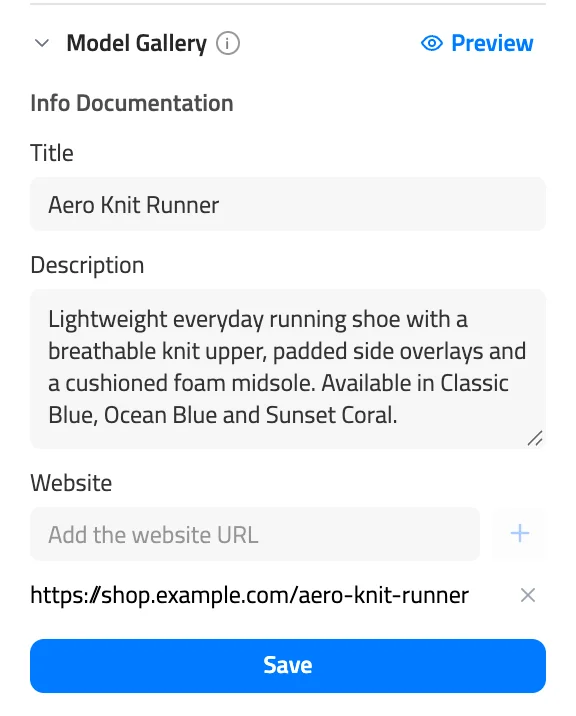
Add a title, description and links
- Open your project and select the model in the scene or in the Scene tab.
- Open the Model tab of the right panel and scroll to the Model Gallery section.
- Under Info Documentation, fill in Title and Description.
- Type a web address in Website and press Enter or click the plus button. Repeat for each link. Click the cross next to a link to remove it.
- Click Save. The button turns green when it's done.
The viewer stores nothing in this section until you click Save. Visitors see the links under Associated Links in the Info tab of the gallery.
Add files
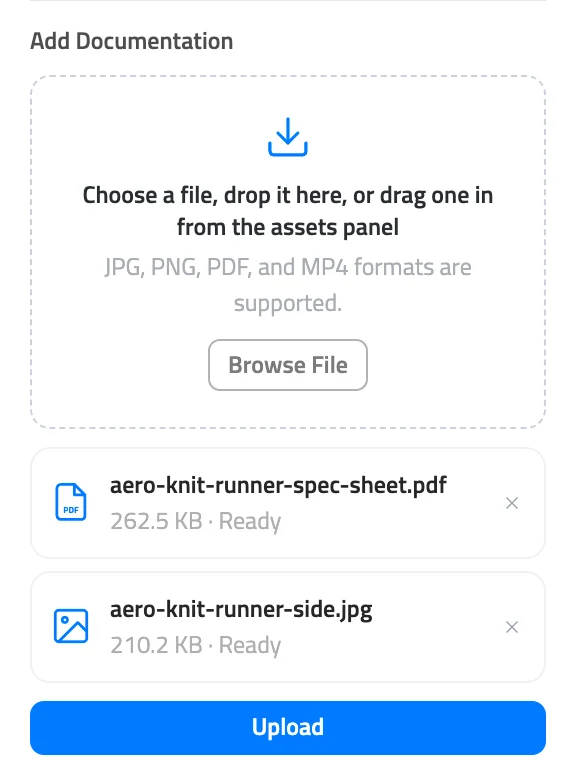
The Add Documentation area of the same section accepts JPG, PNG, PDF and MP4 files. It refuses other file types and turns the format line under the drop zone red.
- Click Browse File, or drop one or more files on the drop zone.
- Check the list of files marked Ready. Click the cross next to a file to drop it from the list.
- Click Upload. A progress bar shows each upload.
Uploaded files also appear in the Assets panel at the bottom of the viewer. You don't need to upload a file that is already in the project. Drag it from the Assets panel onto the drop zone, and the viewer links it to the model. If the file is already in this model's gallery, the viewer says "That file is already in the gallery."
Manage attached files
The section lists attached files below the drop zone, each with its size and a Completed mark. Click a file to open it. Images and videos open in a full-screen viewer. PDFs open in a new browser tab.
To remove a file, click the cross next to it and confirm Remove in the Remove document window. The file leaves the model gallery and no longer appears in the 3DtoMe apps. It stays in the project's assets, so you can drag it back later.
The project owner doesn't get the visitor's Model Gallery button. Click Preview in the header of the Model Gallery section instead to see the gallery the way a visitor does. Preview shows saved content only, so save your edits first.
What visitors see
A round Model Gallery button appears at the bottom center of the viewer when all of these are true:
- The selected model has at least one file in its gallery. On a project with one model, that model counts as selected.
- The project owner's Corporate or Enterprise plan is active.
- The person viewing is not the project owner.
A title, description or links without any file don't show the button. On a project with several models, the button follows the selection, so visitors click a model to see its gallery.
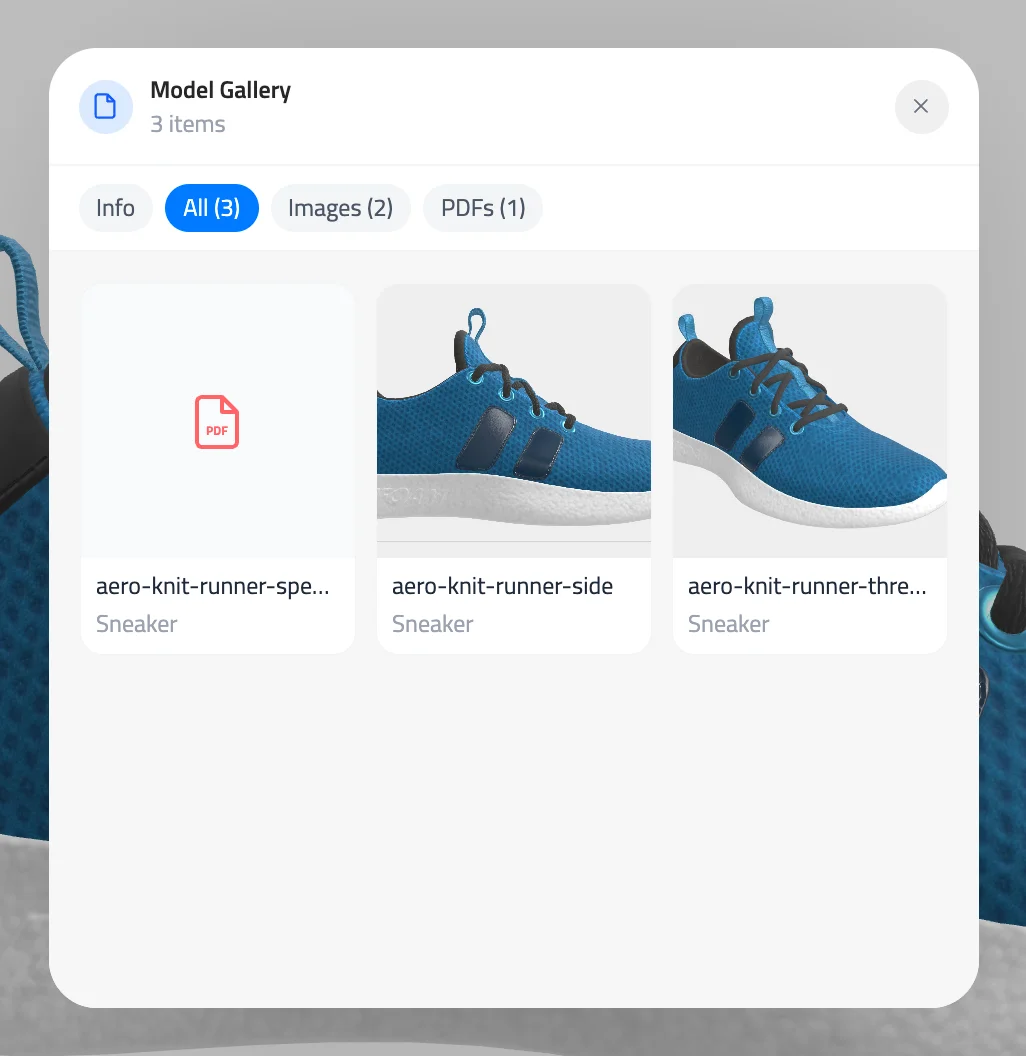
The button opens the Model Gallery window. Tabs sort the content into Info, All, Images, Videos and PDFs. The Info tab shows the title, the description and the website links. Each tab appears only when it has something in it.
Clicking an image or video opens it in a full-screen viewer. PDFs and links open in a new browser tab.
Press Escape or click outside the window to close it.
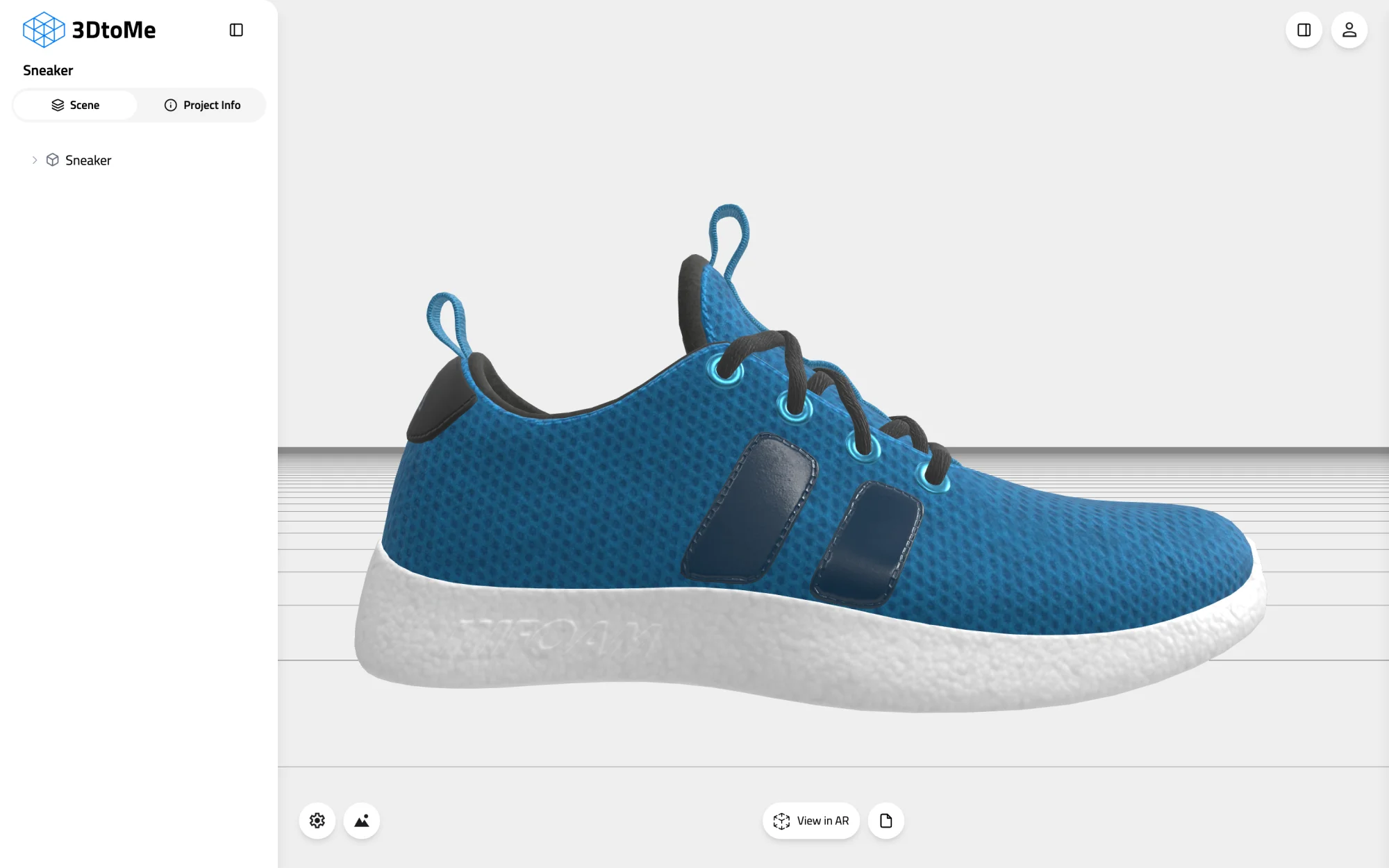
Model: MaterialsVariantsShoe by Shopify, CC BY 4.0
Model: MaterialsVariantsShoe by Shopify, CC BY 4.0
Next Steps
- Explain parts of the model with annotations.
- Offer material options with material variants.
- See which features need which plan on the Plans page.
Still have questions?
If you still have questions, please reach out to our support team for assistance.
Contact Support